How to Utilize an Android Tablet as an Additional Display?

The rise in popularity of dual monitor computer setups, both in home offices and workplaces, has surged dramatically in recent times. This trend can largely be attributed to the increasing complexity of modern software. Employing dual monitors offers a streamlined workflow, enhancing efficiency when utilizing various software applications.
Utilizing an Android tablet as a secondary monitor for your PC presents a cost-effective alternative to purchasing an additional physical monitor. This solution caters to individuals who may find the expense of acquiring two separate monitors prohibitive. Stay tuned to discover how you can harness the potential of your Android tablet as a second monitor!
Using an Android tablet as a secondary monitor offers the significant advantage of eliminating the need to purchase external cables or costly equipment. You can seamlessly utilize a tablet as a second monitor wirelessly through various apps, including:
Duet Display
Duet Display gained immense popularity as an iOS app that allowed users to mirror Mac’s display to the iPhone and iPad. Now, Duet Display is available for Android smartphones and tablets as well to provide similar functionalities.
Keep in mind that Duet Display is a subscription-based service that costs $29.99 per year. Once you buy it, you can connect your Android device, such as a tablet, to the Windows computer wirelessly and hence use the tablet as a monitor wirelessly.
However, if you want to attach an Android tablet with macOS, you'll have to use a USB cable. Moreover, Duet Display does not support touchscreen functionality for the extended display, but you can use the tablet as a touchpad to control your primary monitor.
How to use Android tablet as second monitor via Duet Display?
- Step 1.Download and install the Duet Display app on your Android tablet and PC.
- Step 2.Launch the applications on both devices.
- Step 3.You will need to create a Duet Display account if you sign in the app for the first time. After creating, sign in with your account on both device.
- Step 4.Now, click "Connect Devices" from the left menu bar on your PC, and follow the on-screen instructions to locate your Android tablet and connect to it.
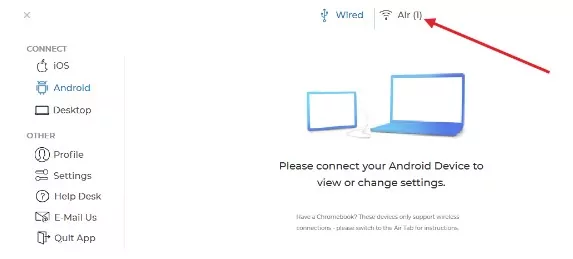
- Step 5.Now, click "Connect Devices" from the left menu bar on your PC, and follow the on-screen instructions to locate your Android tablet and connect to it.
- Configure Duet Display settings to start extending the screen, and enjoy using your tablet as a second monitor!
Splashtop Wired XDisplay
As the name suggests, Splashtop Wired XDisplay is an app that allows you to use your Android tablet as a second monitor through the wired method. It means you will need a USB to use this app.
A significant benefit of using a tool like Splashtop Wired XDisplay is that you can expect a better resolution and frame rate. Hence, you can get the screen in full HD with Splashtop Wired XDisplay, even if it does not support a wireless connection. It is available for free.
How to Extend a PC's Screen to an Android Tablet via Splashtop Wired XDisplay?
- Download and install Splashtop Wired XDisplay on your Android tablet and Windows or Mac PC.
- Use a USB cable to connect your tablet to your PC.
- Open the app on your devices and select the option "Extend desktop to this display."
- Select the “Connect” option on your Android tablet to establish the connection between your PC and the tablet.
- Your PC will now be extended to the tablet, so you can use an Android tablet as a second monitor.
Spacedesk
Spacedesk is a reliable software to use to turn your Android tablet into a second monitor for your Windows PC. It provides multiple connectivity options in the form of USB, Wi-Fi, and LAN. Moreover, you get good quality while using the tablet as a second monitor, along with user-friendly touch support.
It is available for free, but the setup of Spacedesk is quite difficult. In fact, the extensive steps involved in using Spacedesk is its major drawback, due to which it has not become a go-to solution for using tablets as a second monitor.
How to Use Spacedesk to Extend a PC's Screen to an Android Tablet?
- Download the Spacedesk drivers for your PC and install the Spacedesk app on your Android tablet from the Play Store.
- Connect your PC and Android Tablet to the same Wi-Fi network.
- On your PC, open the "Server Properties" by accessing the Spacedesk icon.
- Open the “Network” tab and note the IP addresses listed under the Server IPv4 Address.
- Open the Spacedesk app on your Android tablet and tap the “Connect” button.
- Enter the IP address noted before and select "Connect."
- Your PC’s screen will get extended to the Android tablet. You can adjust the screen resolution and orientation as per your requirements.
iDisplay
iDisplay is a powerful display mirroring app that was first introduced for iOS and macOS users. However, it's now available for Windows and Android users as well. It allows you to use your Android tablet as a second monitor with 60 fps and multi-touch options after extending the screen.
Another surprising feature of iDisplay is that it came at the cost of $18, but now it’s available for free. You can use it to turn your Android tablet into a second monitor through both wired and wireless connections, but USB support is not available for Android devices yet.
How to Use an Android Tablet as second monitor via iDisplay?
- Download and install the iDisplay apps on your Android tablet and desktop.
- Connect your PC and Android tablet to the same network.
- Launch the apps on both of your devices.
- Select the “Connect” button on the iDisplay software of your PC.
- Select the “Extend Desktop” option on the iDisplay app on your Android tablet.
- You can adjust the display resolution and orientation from the iDisplay desktop software and start using the Android tablet as a second monitor.
AirDroid Cast
AirDroid Cast is one of the most reliable apps you can use for screen mirroring. It is a user-friendly and effective tool that can help you in duplicating the screen of your PC to an Android tablet. The cross-platform compatibility of AirDroid Cast makes it easy for users to rely on this app for screen mirroring and maximizing collaboration with features like a remote control.
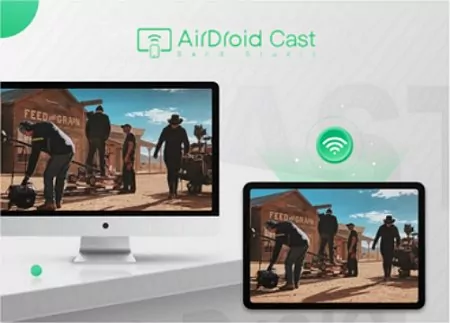
For now, you can use AirDroid Cast to fulfill your screen mirroring requirements, such as mirroring the screen of your Windows computer or Mac to an Android tablet. However, in the near future, you'll also be able to get the screen to extend the feature in AirDroid Cast.
How to Mirror Windows/Mac to your tablet with AirDroid Cast?
- Download and install the AirDroid Cast app on your sending and receiving devices.
- Open the AirDroid Cast software on the casting computer and select "Cast To."
- Enter the provided code on the AirDroid Cast app on your Android tablet, or simply scan the QR code.
- Provide the relevant permissions and start screen mirroring your computer to your Android tablet.
In this way, you will get a duplicated screen so that you can streamline your workflow.
Enhancing Second Screen Performance: Best Practices
Maximize your dual-screen experience with these expert tips:
- Ensure both devices are connected to a robust internet connection, optimizing Wi-Fi signals for seamless performance.
- Customize screen resolution and orientation to suit your preferences and workflow.
- Enhance system performance by closing unnecessary programs while extending your PC screen to the tablet.
- Regularly update device drivers to preemptively address any bugs that may compromise display quality.
- If opting for a wired connection, prioritize high-quality cables to maintain image integrity and performance.
- Fine-tune desktop graphics settings, particularly graphic card configurations, for optimal display outcomes.
Conclusion
Utilizing an Android tablet as a second screen need not be daunting. Armed with these considerations, selecting the appropriate app from those discussed in this article becomes straightforward. For Samsung tablet users, leveraging the built-in Second Screen feature offers a seamless solution. Alternatively, AirDroid Cast stands out as a robust third-party option, continually expanding its capabilities to meet evolving needs.


0 Comments
Add a comment